
Color Grading in Lightroom: The Panel, Presets and LUTs
Color grading in Lightroom is the step where a photo stops looking merely correct and starts carrying a mood: teal shadows against warm skin, a soft golden film tone, a cool winter blue. Color grading itself is the creative adjustment of color, contrast and tone in a photo or video to give it a style, and it always comes after color correction. This guide shows where the Color Grading panel sits in every version of Lightroom, what each control does, how presets, profiles and LUTs carry a grade, and how to apply the same look with LUTs in Premiere Pro, DaVinci Resolve, Final Cut Pro, Photoshop and CapCut.
What Is Color Grading?
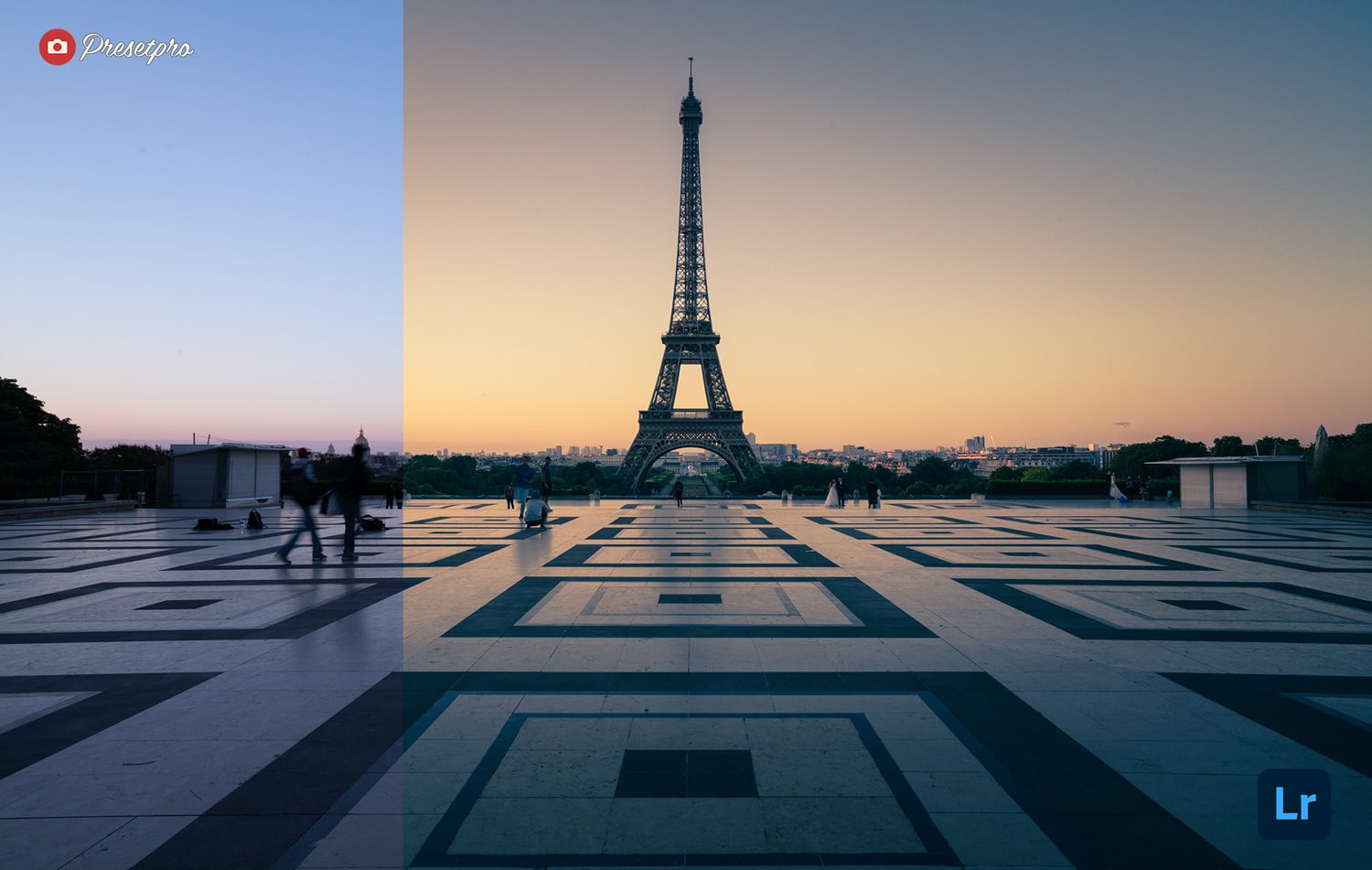
Color grading is the creative pass. It decides how a picture should feel, through choices such as a warm cast in the highlights, a cooler tone in the shadows, or a muted palette that reads as film. Photographers use it to give a set of images one consistent look; filmmakers use it to set the mood of a scene and to make shots from different cameras match.
Color correction vs color grading
Color correction is the technical pass that comes first: neutral white balance, correct exposure, sensible contrast and accurate skin. Color grading is the creative pass that follows. The order matters, because a grade laid on top of a blue cast or an underexposed file amplifies the problem instead of creating a look. In Lightroom that means working the Basic panel first, then opening Color Grading.
For video there is one extra step before either: footage shot in a log profile looks flat and gray until it is converted to a standard display space such as Rec. 709, usually with a conversion LUT. Only then do correction and grading begin.
Where Is the Color Grading Panel in Lightroom?
- Lightroom Classic: open a photo in the Develop module. Color Grading is in the right-hand panel stack, below the Color Mixer panel (older versions called it HSL/Color).
- Lightroom (desktop): open the Edit panel, then the Color section, then Color Grading.
- Adobe Camera Raw and the Photoshop Camera Raw Filter: in the Edit panel, open the Color Grading section.
- Lightroom mobile: tap Color, then Grading. The mobile apps have no 3-Way view.
If the panel seems to be missing in Lightroom Classic, right-click (Control-click on a Mac) any panel header, choose Customize Develop Panel and switch Color Grading back on.
How to Color Grade in Lightroom, Step by Step
1. Correct the photo first
Set white balance, exposure, contrast, highlights and shadows in the Basic panel until the photo looks natural. Color Grading can only add color; it cannot remove saturation from the image underneath, so a strong color cast should be fixed with white balance or the Color Mixer before you grade.
2. Open the 3-Way view
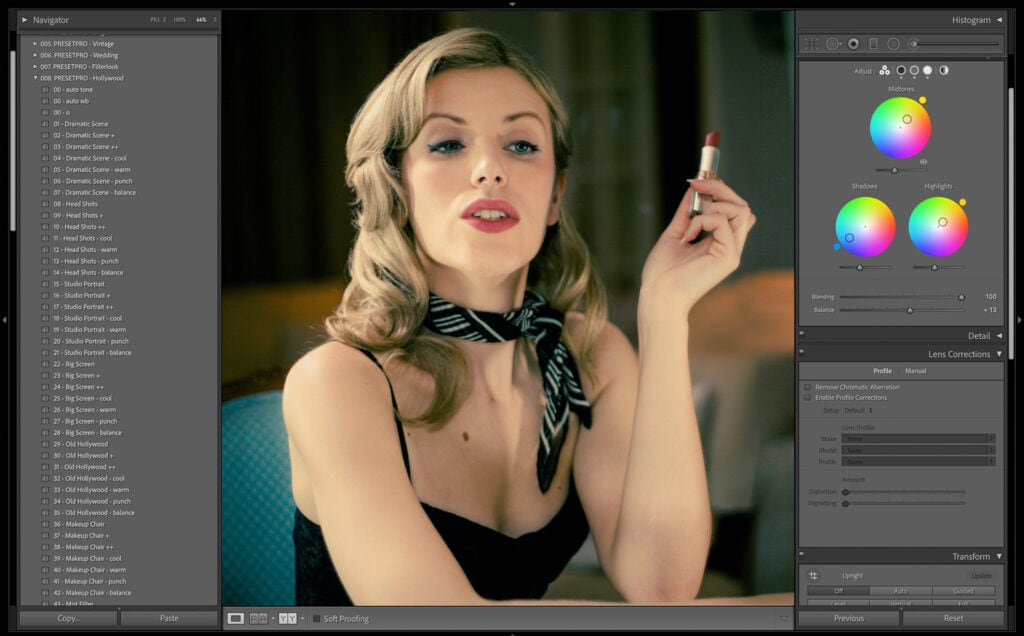
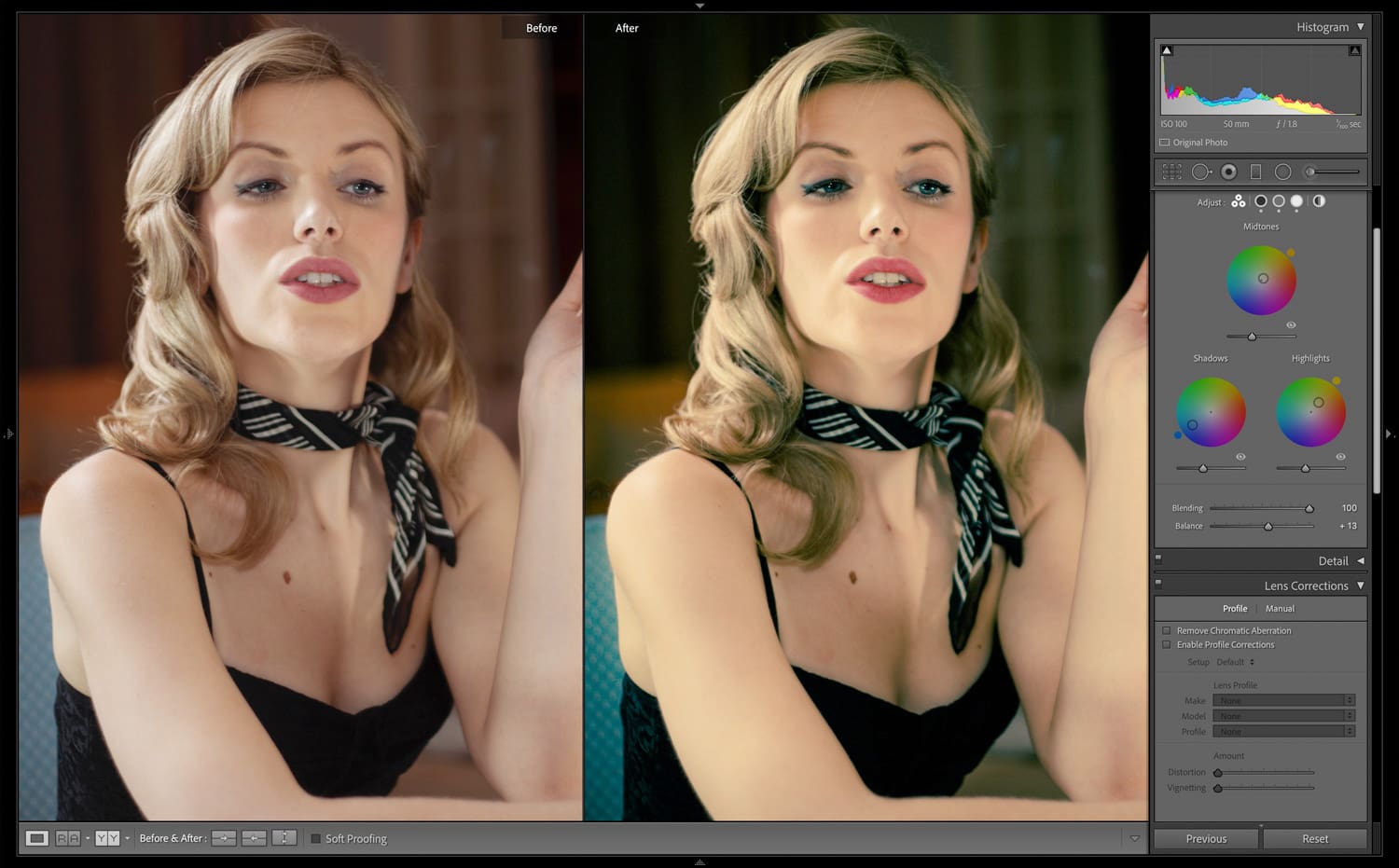
The row of icons across the top of the panel switches views. 3-Way shows the Shadows, Midtones and Highlights wheels together, which is the easiest way to see the whole grade. The other icons open one larger wheel at a time, and the last one opens the Global wheel.
3. Tint the shadows and highlights
Drag the handle in the middle of a wheel. Its angle sets the hue and its distance from the center sets the saturation: the center is no color at all, the edge is full strength. The small handle on the outer ring changes the hue only. A classic starting point is shadows toward teal and highlights toward orange, each at a saturation of about 10 to 20. Small numbers go a long way.
4. Use the midtones for skin and the overall tone
The Midtones wheel is where most of a photo’s subject sits, including skin. A light warm push here reads as golden light; a cool push reads as overcast or night. Midtones were the big addition when Color Grading replaced Split Toning.
5. Adjust luminance under each wheel
Each wheel has a Luminance slider from -100 to 100. It brightens or darkens that tonal range without adding any tint, which is useful for lifting faded shadows or holding back bright highlights in a film look.
6. Use the Global wheel for an overall tint
Global tints the whole image at once and has its own luminance control. Blending and Balance do not affect it, so keep it subtle and use it last.
7. Set Blending and Balance
Blending sets how much the shadow, midtone and highlight ranges overlap. The default is 50; lower values give sharper separation between the tints, higher values mix them smoothly. Balance shifts the split point: values above 0 give the highlight tint more of the image, values below 0 give the shadow tint more.
8. Fine-tune with the modifier keys
- Hold Shift while dragging a handle to change saturation only.
- Hold Command (Mac) or Ctrl (Windows) to change hue only.
- Hold Option (Mac) or Alt (Windows) for fine adjustment.
- Double-click a handle to reset it.
- In Lightroom Classic and Camera Raw, press and hold the eye icon beside a wheel to hide its effect and compare.
Watch: the Color Grading panel in Lightroom
Three Starting Grades to Try
- Teal and orange: shadows toward teal, highlights toward orange, midtones untouched or slightly warm, Blending around 60. It flatters skin against blue sky, water or city lights.
- Warm film: highlights a little warm, shadows a little warm or green, shadow luminance lifted slightly, Balance a few points toward the highlights. Pair it with a gentle fade from the Tone Curve.
- Cool and moody: shadows and midtones toward blue, highlights almost neutral, saturation kept low. Pull the highlight luminance down a touch to keep the mood quiet.
Opposite colors on the wheel, such as teal and orange or blue and yellow, separate a subject from its background. Neighboring colors, such as orange and gold, give a calmer, more unified look.
What Happened to Split Toning?
Adobe replaced the Split Toning panel with Color Grading on October 20, 2020, in Lightroom Classic 10.0, Camera Raw 13.0, Lightroom 4.0 for Mac and Windows and the Lightroom mobile apps. Split Toning only tinted shadows and highlights; Color Grading added the Midtones and Global wheels, the luminance sliders and Blending.
Older presets still work. When a photo or preset with Split Toning settings is opened, Lightroom sets Blending to 100 and leaves every new control at 0, so the result looks exactly as it did before. To recreate classic split toning by hand, set Blending to 100 and use only the Shadows and Highlights wheels.
Presets, Profiles and LUTs: Three Ways to Carry a Grade
A grade you like is worth saving, and Lightroom gives you three ways to do it.
- Presets store slider values, including every Color Grading wheel, so one click repeats the whole edit. Applying a preset changes the sliders it contains and nothing else.
- Profiles sit at the very start of the edit, in the Profile Browser at the top of the Basic panel. A creative profile carries a look of its own with an Amount slider, and your sliders work on top of it. When a preset includes its own profile, apply the preset first and then choose a different profile if you want one, because the preset sets its own.
- LUTs (lookup tables, usually .cube files) map every input color to an output color. They are the standard way to carry a grade between video apps and Photoshop.
Can you use LUTs in Lightroom?
Not directly: Lightroom cannot open a .cube file. A LUT has to become a profile first. In Adobe Camera Raw, open the Presets panel, hold Option (Mac) or Alt (Windows) and click Create Preset to open Create Profile, tick Color Lookup Table, load the .cube file and save. The new profile then appears in Lightroom’s Profile Browser, with an Amount slider (in Lightroom Classic, after a restart).
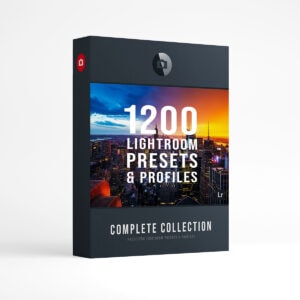
The Creative Flow ($139) is built this way: the core 1,200 presets and 1,200 profiles, with a matching profile for each look, plus 200 brushes, for Lightroom and Lightroom Classic. For one style only, the Cinematic Collection ($39) is a good place to start color grading with presets.
Free Color Grading Preset for Lightroom
Color Grading with LUTs in Other Apps
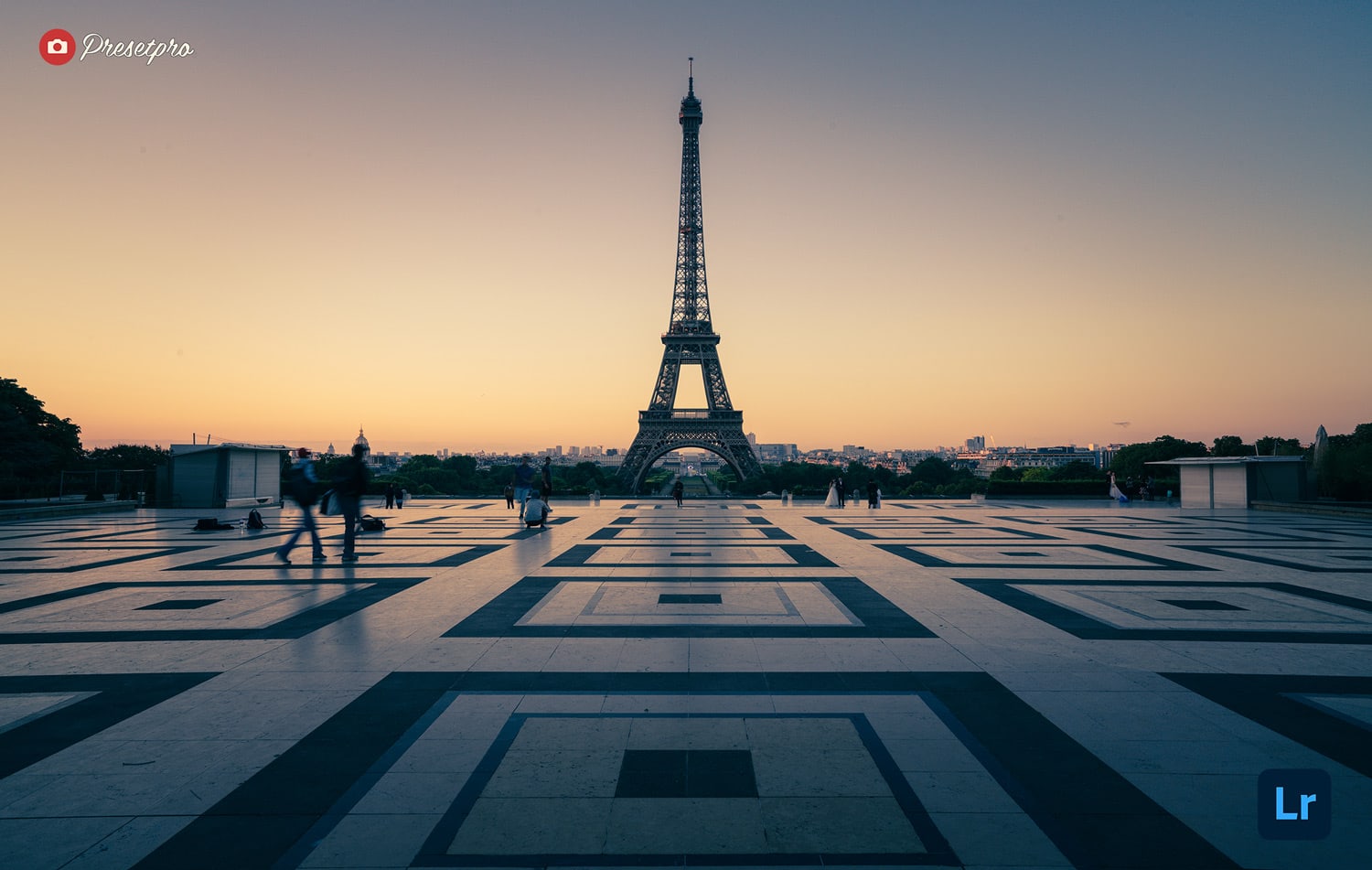
A LUT gives the same starting look in every app that reads .cube files. Correct the footage or photo first, and for log footage convert it to Rec. 709 before you add a creative LUT. Most creative LUTs look best at 50 to 70 percent strength rather than full.
Premiere Pro (now Adobe Premiere)
Add the Lumetri Color effect to the clip. Load a creative LUT from the Creative section: open the Look menu and choose Browse. A log conversion LUT goes in Basic Correction, under Input LUT. The Intensity slider in the Creative section controls the strength.
DaVinci Resolve
Open Project Settings (the gear icon), then Color Management, then Lookup Tables, and click Open LUT Folder. Copy the .cube files into that folder, click Update Lists and save. On the Color page, right-click a node, choose LUT and pick the file. Lower Key Output Gain in the Key panel to reduce its strength.
Final Cut Pro
Select the clip, open the Effects browser, go to the Color category and double-click Custom LUT. In the Video inspector, open the LUT menu and choose Choose Custom LUT to load a .cube file. Camera log conversions are set separately, with the Camera LUT menu in the Info inspector.
Photoshop
Choose Layer, New Adjustment Layer, Color Lookup. In the Properties panel, open the 3DLUT File menu, choose Load 3D LUT and pick the .cube file. Lower the layer’s opacity to reduce the effect. Our guide to installing LUTs in Photoshop covers adding them permanently.
CapCut
In CapCut for desktop, open the Adjustment tab, choose LUT, then Import, and select a .cube or .3dl file.
Free and Professional LUTs for Color Grading
To try color grading with LUTs at no cost, start with our roundup of the best free LUTs for color grading, 38 free .cube LUTs with install notes, or browse more than 160 free LUTs on FreePresets.com.
When you want a full set, these are the Presetpro LUT collections:
- Complete Collection LUTs: the film emulation, vintage, media, portrait, landscape, cinematic and color grading LUT sets in one download, $99 (regularly $299).
- Film Emulation LUTs: 160 film emulation LUTs, $59.
- Color Grading LUTs: 200 LUTs in CUBE and 3DL, with photo and video versions and Lightroom profiles included, $59.
- Portrait LUTs (85 LUTs), Vintage LUTs (86), Media LUTs (78) and Landscape LUTs (70), $29 each.

Complete LUTs $99.00
Color Grading LUTs
Film Emulation LUTs $59.00
Color Grading LUTs

Portrait LUTs $29.00
Color Grading LUTs
Vintage LUTs $29.00
Color Grading LUTs
Common Color Grading Mistakes
- Grading before correcting. A grade cannot fix white balance or exposure; it exaggerates them.
- Too much saturation. Many grades work best with the wheels between 5 and 25. Step away and look again before you push further.
- Running a LUT at full strength. Lower the amount, intensity or opacity until the look supports the photo instead of covering it.
- Ignoring skin. Check faces after every move; skin that turns green or magenta gives a grade away.
- Grading one image at a time. Save the grade as a preset or profile and apply it across the set, so the whole shoot looks consistent.
Color Grading FAQ
What is the difference between color correction and color grading?
Color correction is the technical first step that makes an image look natural, with neutral white balance, correct exposure and accurate skin. Color grading is the creative second step that gives the image a mood or style, such as warm highlights and teal shadows.
Where is the Color Grading panel in Lightroom?
In Lightroom Classic it is in the Develop module, in the right-hand panel stack below Color Mixer. In Lightroom for desktop it is in the Edit panel under Color, and in Lightroom mobile it is under Color, then Grading.
Can you use LUTs in Lightroom?
Not directly. Lightroom cannot open a .cube file, but you can turn a LUT into a profile in Adobe Camera Raw with Create Profile and the Color Lookup Table option. The profile then appears in Lightroom with an Amount slider.
Can I color grade for free?
Yes. The Color Grading panel is part of every current version of Lightroom and Camera Raw, DaVinci Resolve has a free version, and there are free LUTs and free color grading presets to start from.
What happened to Split Toning in Lightroom?
Adobe replaced Split Toning with the Color Grading panel in October 2020. Older presets still look the same, because Lightroom sets Blending to 100 and leaves the new controls at 0 when it opens Split Toning settings.
Lightroom Presets
Lightroom Presets
Lightroom Presets

Lightroom Presets
Lightroom Presets
Lightroom Presets
Lightroom Presets
Lightroom Presets
Lightroom Presets