
How to Install Adobe Camera RAW Brushes: The 2026 Ultimate Guide
Adobe Camera RAW (ACR) is the powerhouse engine behind Photoshop’s raw processing. While many photographers use it for global edits, the true magic happens with Local Adjustment Brushes. Since ACR and Lightroom Classic share the same CameraRaw settings directory, you can easily install and sync your professional brushes across both platforms. This guide provides the definitive 2026 manual installation path for .xmp local adjustment presets.
Quick Reference: ACR Brush Specifications
| Feature | Technical Specification |
|---|---|
| File Format | .xmp (Local Adjustment Preset) |
| Target Folder | Local Corrections (Settings) |
| Compatibility | Photoshop ACR & Lightroom Classic |
| Workflow Benefit | Non-destructive local dodging, burning, and retouching |
💡 Pro-Tip: The Shared Ecosystem
Because Adobe Camera RAW and Lightroom Classic share the same internal ‘Settings’ folder, any brush you install using this method will automatically appear in both applications. This is a massive time-saver for photographers who start their edit in Lightroom but finish in Photoshop via ACR.
Step-by-Step: Installing ACR Brushes via Lightroom
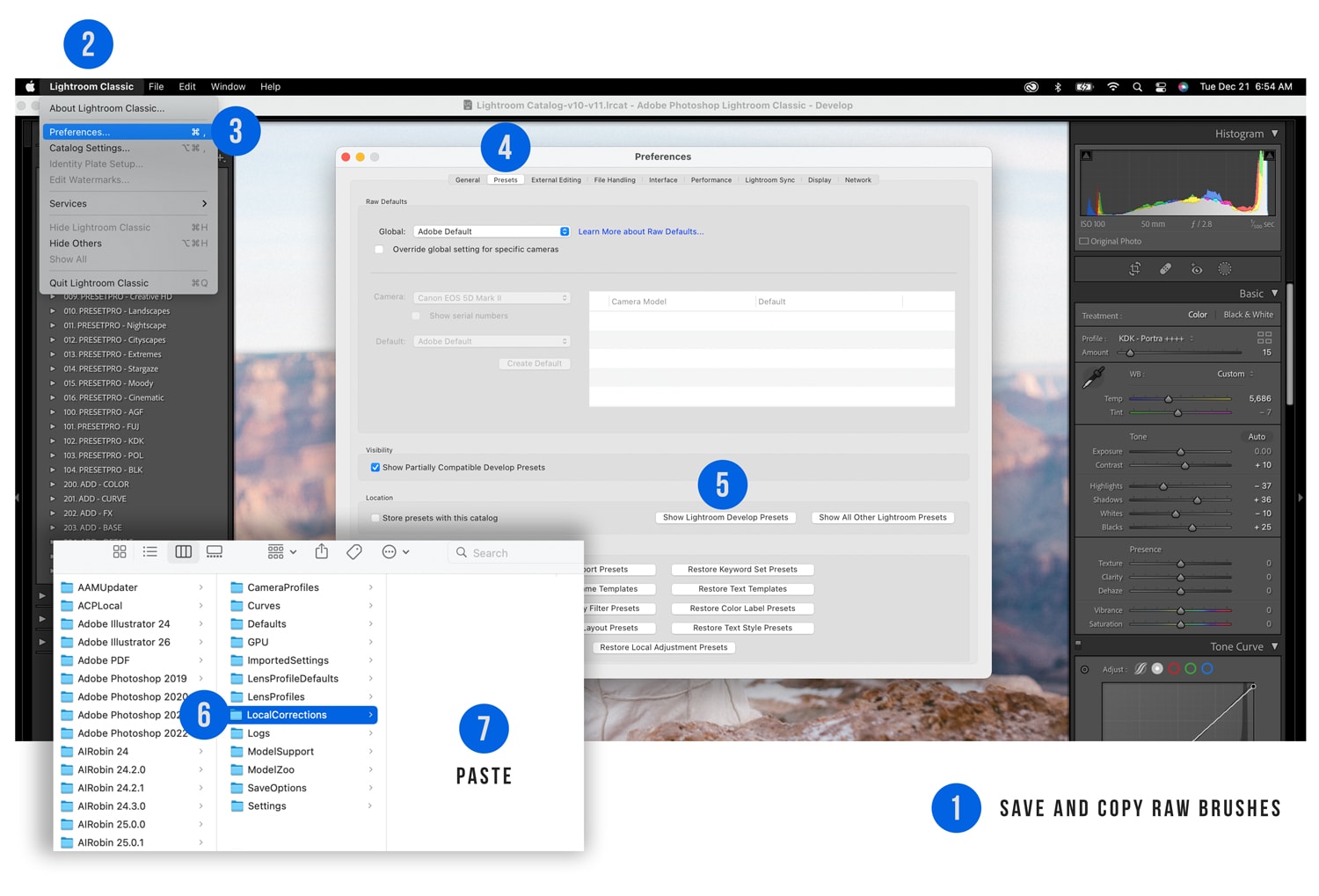
Step 1: Copy Your .XMP Brush Files
Unzip your brushes onto your desktop. Open the folder, select all the .xmp files (Click the first, hold Shift, click the last), Right-click, and select Copy. Note: You must copy the individual files, not the folder, for them to index correctly in the ACR masking menu.
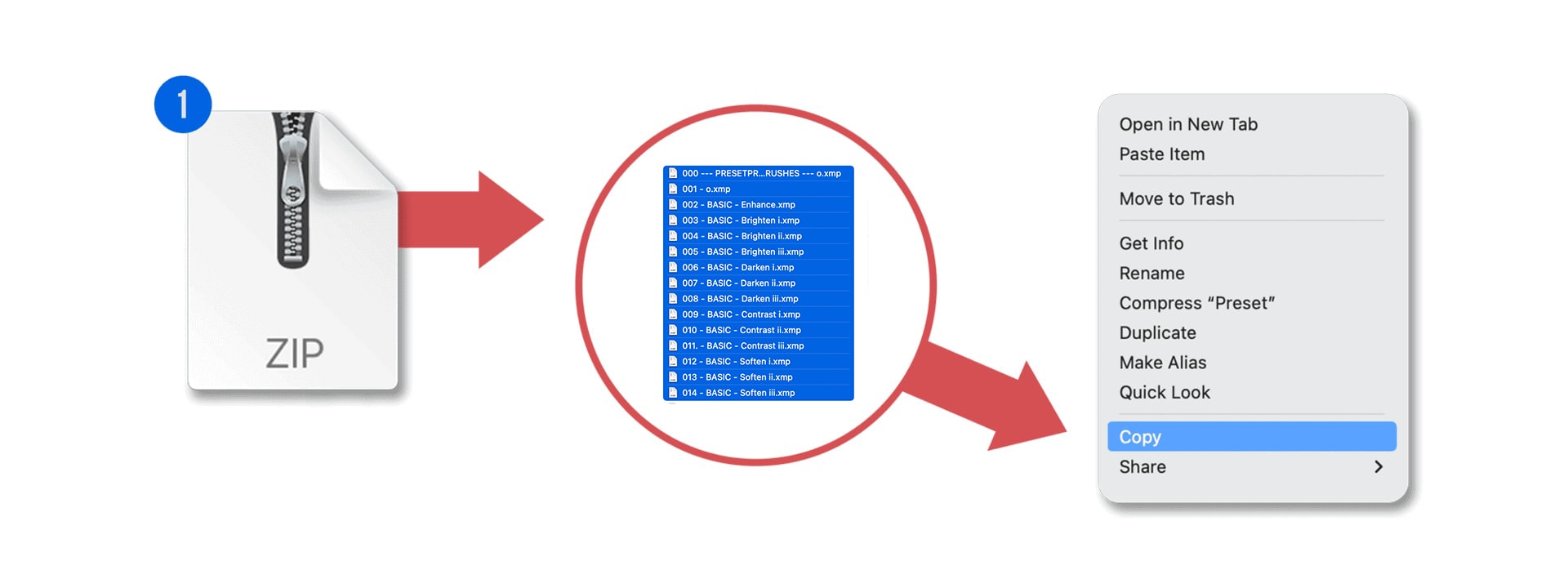
Step 2: Access Lightroom Preferences
Launch Lightroom Classic. Go to Lightroom Classic > Preferences (Mac) or Edit > Preferences (PC) to open the configuration window.
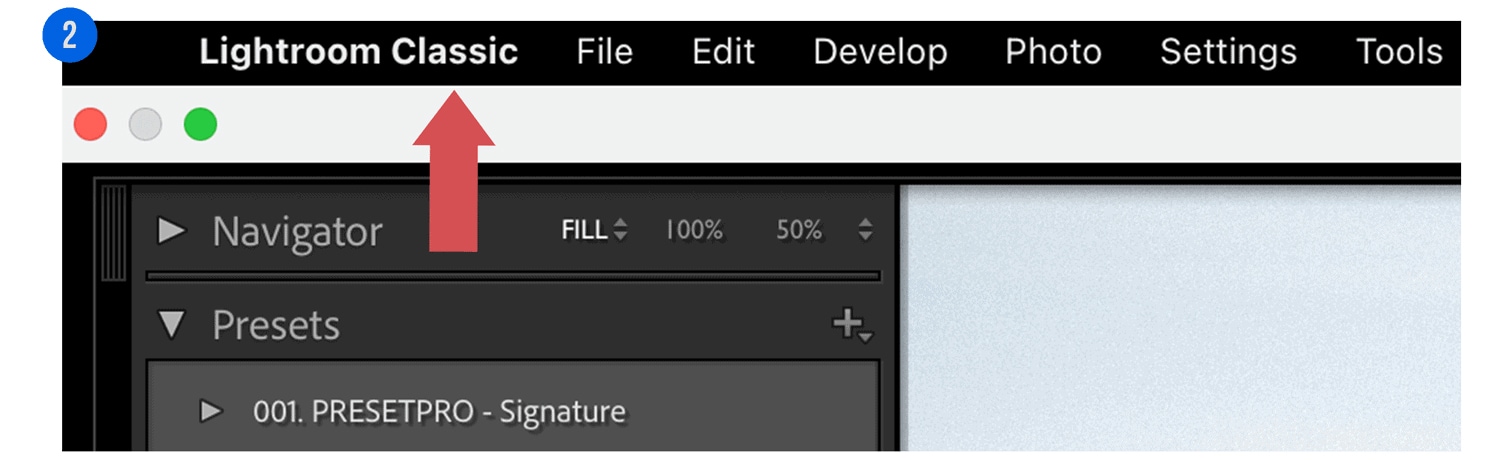
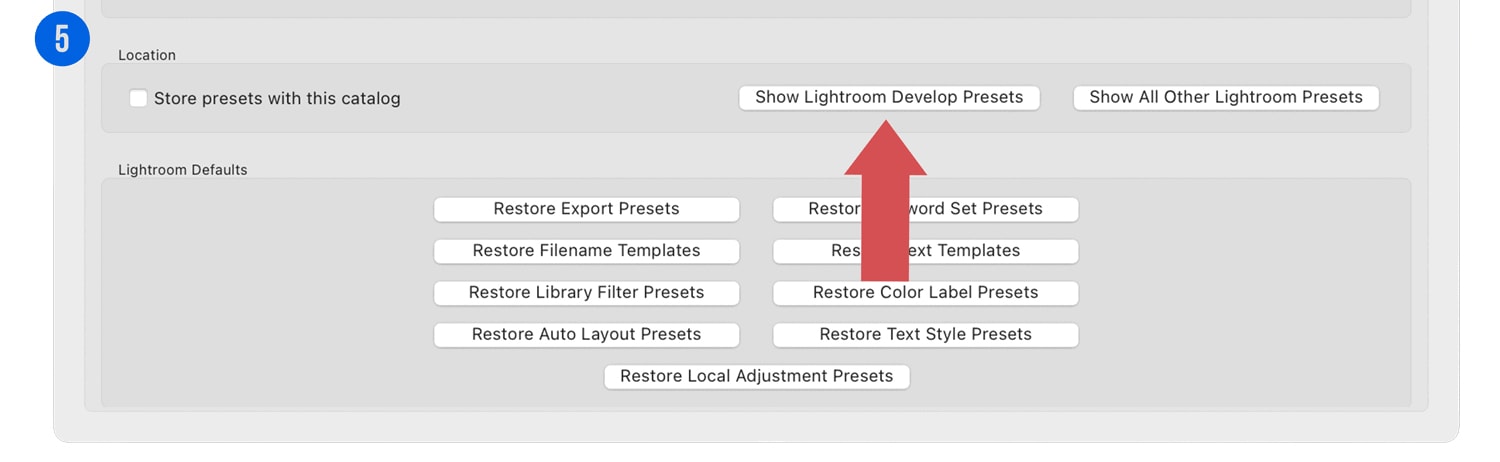
Step 3: Show the Develop Presets Folder
Select the Presets tab. In the center of the window, click the button labeled “Show Lightroom Develop Presets.” This will open your system’s file explorer directly to the Adobe CameraRaw folder.
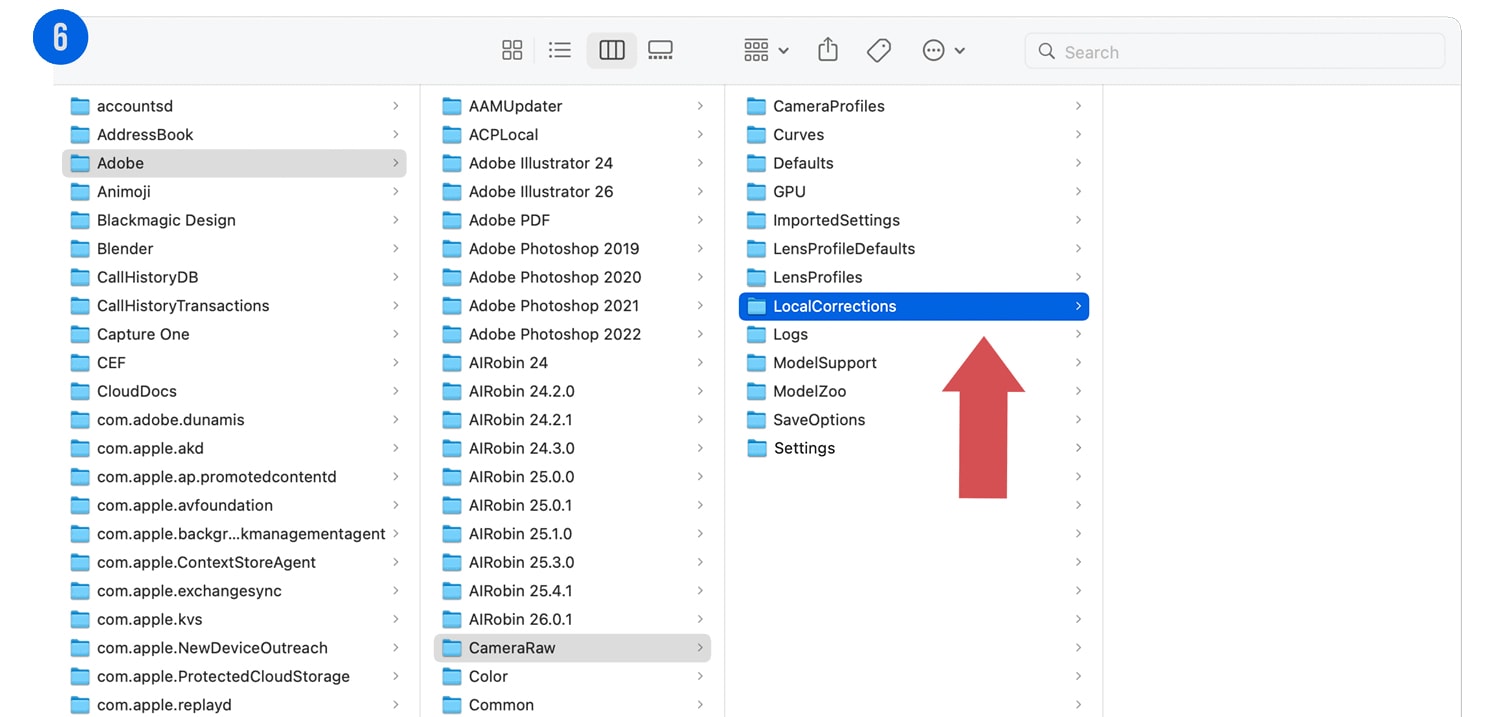
Step 4: Locate Local Corrections
Once the ‘Settings’ directory is open, locate the folder named Local Corrections. This is the specific repository for all brush-based adjustment presets used by the ACR engine.
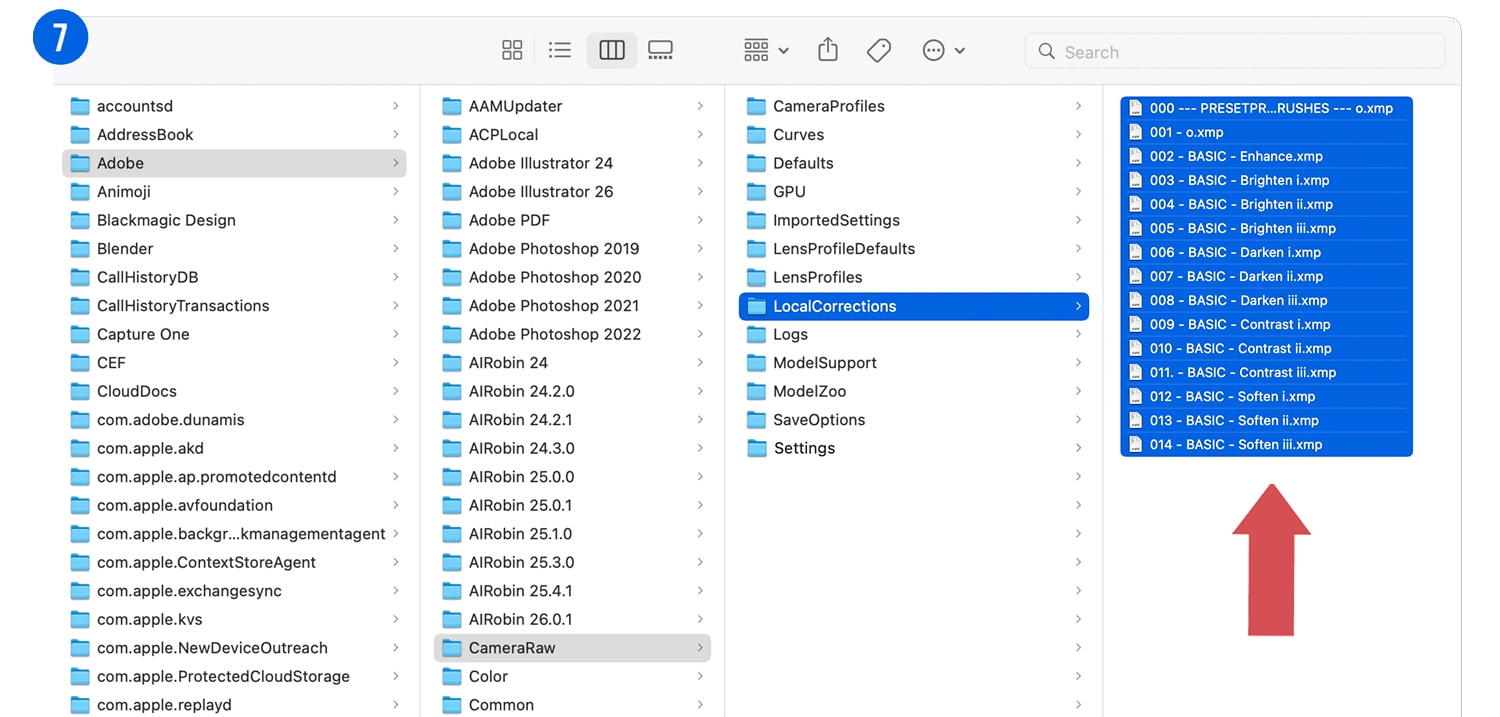
Step 5: Paste and Finalize
Paste your copied files into this folder. Close the window, restart Lightroom Classic, and open Adobe Camera RAW. You will now find your new tools under Masking > Brushes > Adjustment Presets.
⚠️ Troubleshooting: Brushes Not Showing?
If your brushes aren’t appearing in ACR, ensure you haven’t pasted a zipped folder or a subfolder into ‘Local Corrections’. ACR is strict; it requires the .xmp files to be sitting directly in that folder to read them. Always restart Photoshop after pasting to refresh the cache.
Conclusion
By installing your tools into the Local Corrections directory, you ensure a seamless workflow between Lightroom and Adobe Camera RAW. These Professional ACR Brushes allow you to perform high-end retouching with surgical precision. For more tips on optimizing your setup, check out our guide on How to Install Lightroom Classic Presets.
Do you want to take your photography skills to the next level? With The Creative Flow, you’ll have access to more than 1200 Beautiful Lightroom Presets, 1200 Lightroom Profiles, and 200 brushes that will spark your creativity and bring your photos to the next level! Designed for the photographer who wants the ultimate workflow and premium Lightroom collection. The Creative Flow is your own personal preset “toolbox” where you can swap out a variety of different looks with a few simple clicks. Whether you’re a professional or just starting out, this all-in-one collection was created for you! You won't find another product like this anywhere else online - trust us when we say it's worth every penny! Click here right now and get started with The Creative Flow today!
The Creative Flow | Presetpro.com




Lightroom Presets
Lightroom Presets
Lightroom Presets

Lightroom Presets
Lightroom Presets
Lightroom Presets
Lightroom Presets
Lightroom Presets
The film names above are the brands and trademarks of their respective holders. None of the film producers listed endorse or sponsor this film emulation collection or any other content. The film producers are not affiliated with Presetpro.com and all trademarks and copyrights are the exclusive property of their respective owners. Adobe®, Photoshop®, Adobe® Lightroom® are either registered trademarks or trademarks of Adobe Systems Incorporated in the United States and/or other countries.