
How to Change Crop Overlay in Lightroom: The 2026 Ultimate Guide
Mastering composition is the difference between a snapshot and a professional photograph. Adobe Lightroom Classic provides advanced compositional guides—like the Golden Spiral and the Phi Grid—to help you align subjects with mathematical precision. In this guide, we will show you how to cycle through these overlays using Lightroom keyboard shortcuts and explain when to use each one to improve your visual storytelling.
Quick Reference: Lightroom Crop Overlays & Shortcuts
| Action | Keyboard Shortcut | Best For |
|---|---|---|
| Cycle Overlays | Press O | Switching between Rule of Thirds, Diagonal, Triangle, etc. |
| Rotate Overlay | Press Shift + O | Flipping the Golden Spiral or Triangle orientation. |
| Activate Crop | Press R | Entering the Crop & Straighten tool instantly. |
💡 Pro-Tip: Hide the Overlay
Sometimes the grid lines can be distracting when you’re trying to judge the “feel” of a crop. You can change the visibility of the overlay by going to Tools > Crop Guide Overlay and choosing ‘Always Show’, ‘Auto Show’, or ‘Never Show’.
Step-by-Step: How to Change the Crop Overlay
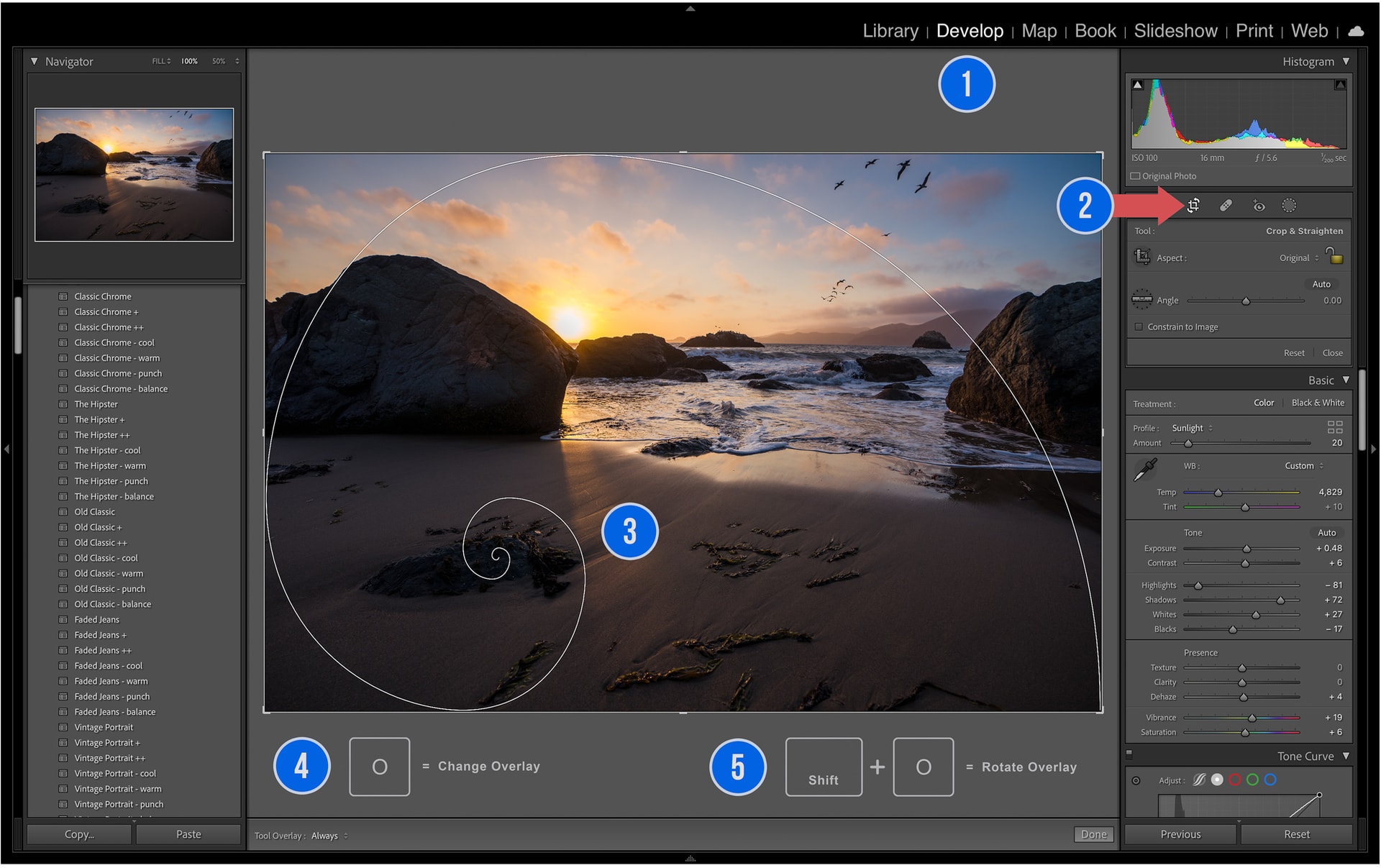
- Enter the Develop Module: Open Lightroom Classic and select the image you wish to edit.
- Select the Crop Tool: Click the Crop & Straighten icon under the Histogram or simply press R on your keyboard.
- Cycle Overlays: While the crop tool is active, press the “O” key to cycle through the available grids.
- Rotate and Flip: If using the Golden Spiral or Triangle overlay, press Shift + O to flip the orientation to match your subject’s position.
Understanding Compositional Grids
The Golden Ratio (Phi Grid)
The Golden Ratio is a mathematical proportion ($1:1.618$) often found in organic structures and nature. In Lightroom, the Phi Grid is similar to the Rule of Thirds but the center lines are closer together. This creates a more “balanced” and less “obvious” composition that draws the eye naturally toward the focal point.
The Golden Spiral (Fibonacci Sequence)
Based on the Fibonacci Sequence, this spiral leads the viewer’s eye through the frame in a progressive curve. It is exceptionally effective for wide-angle landscapes or environmental portraits where you want to lead the viewer from a foreground element to the main subject.
The Rule of Thirds
The most common grid, dividing the frame into nine equal segments. Placing subjects at the intersection points (the “power points”) creates a stable and energetic composition.
📁 Pro-Tip: Choose Your Favorite Overlays
If you find yourself only using two or three overlays, you can customize which ones show up when you press “O”. Go to Tools > Crop Guide Overlay > Choose Overlays to Cycle and uncheck the ones you don’t use to speed up your workflow.
Conclusion
By effectively using Lightroom crop overlays, you can elevate your photography from simple documentation to intentional art. Whether you’re aligning a horizon with the Phi Grid or leading a viewer through a Golden Spiral, these tools are essential for professional post-processing. To further enhance your edits, check out our guide on How to Install Lightroom Classic Presets.
Do you want to take your photography skills to the next level? With The Creative Flow, you’ll have access to more than 1200 Beautiful Lightroom Presets, 1200 Lightroom Profiles, and 200 brushes that will spark your creativity and bring your photos to the next level! Designed for the photographer who wants the ultimate workflow and premium Lightroom collection. The Creative Flow is your own personal preset “toolbox” where you can swap out a variety of different looks with a few simple clicks. Whether you’re a professional or just starting out, this all-in-one collection was created for you! You won't find another product like this anywhere else online - trust us when we say it's worth every penny! Click here right now and get started with The Creative Flow today!
The Creative Flow | Presetpro.com














Lightroom Presets

Lightroom Presets

Lightroom Presets
Lightroom Presets
Lightroom Presets
Lightroom Presets

Lightroom Presets

Lightroom Presets
The film names above are the brands and trademarks of their respective holders. None of the film producers listed endorse or sponsor this film emulation collection or any other content. The film producers are not affiliated with Presetpro.com and all trademarks and copyrights are the exclusive property of their respective owners. Adobe®, Photoshop®, Adobe® Lightroom® are either registered trademarks or trademarks of Adobe Systems Incorporated in the United States and/or other countries.