
How to Install Lightroom Classic Presets: The 2026 Ultimate Guide
Lightroom presets are the industry standard for maintaining a consistent visual brand and accelerating your professional workflow. Whether you are using .XMP files or older legacy formats, knowing how to properly index them in the Develop Module is crucial for non-destructive editing. In this guide, we will show you the fastest manual method to install Lightroom Classic presets for both Mac and PC.
Quick Reference: Installation Summary
| Feature | Technical Specification |
|---|---|
| File Format | .XMP (Modern) / .lrtemplate (Legacy) |
| Primary Path | Preferences > Presets > Show Lightroom Develop Presets |
| Compatibility | Adobe Lightroom Classic v7.3 and newer |
| Workflow Benefit | Batch processing, Cinematic Film Emulation |
💡 Pro-Tip: Preserve Your Original Data
Lightroom Classic presets are non-destructive. This means applying a preset does not change your original RAW data; it simply layers instructions on top. If a look is too intense, you can use the Preset Amount Slider (found at the top of the Presets panel) to dial back the opacity of the effect without losing your base adjustments.
Step-by-Step Installation Guide
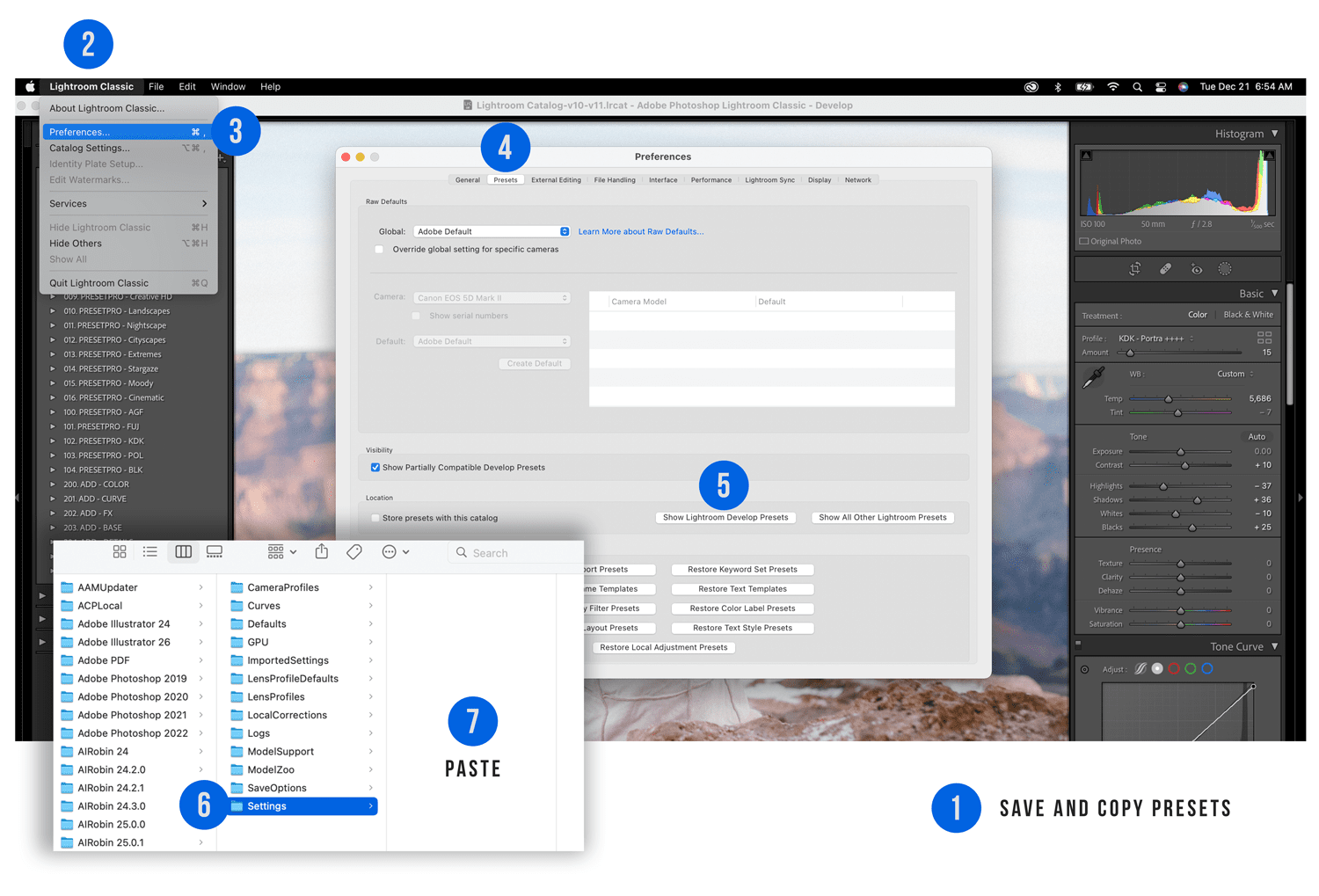
Step 1: Prepare and Copy Your Preset Files
Unzip your download and save the files to your desktop. Select the entire folder containing your presets, Right-click, and select Copy. Copying the folder ensures your Preset Panel stays organized and categorized once imported.
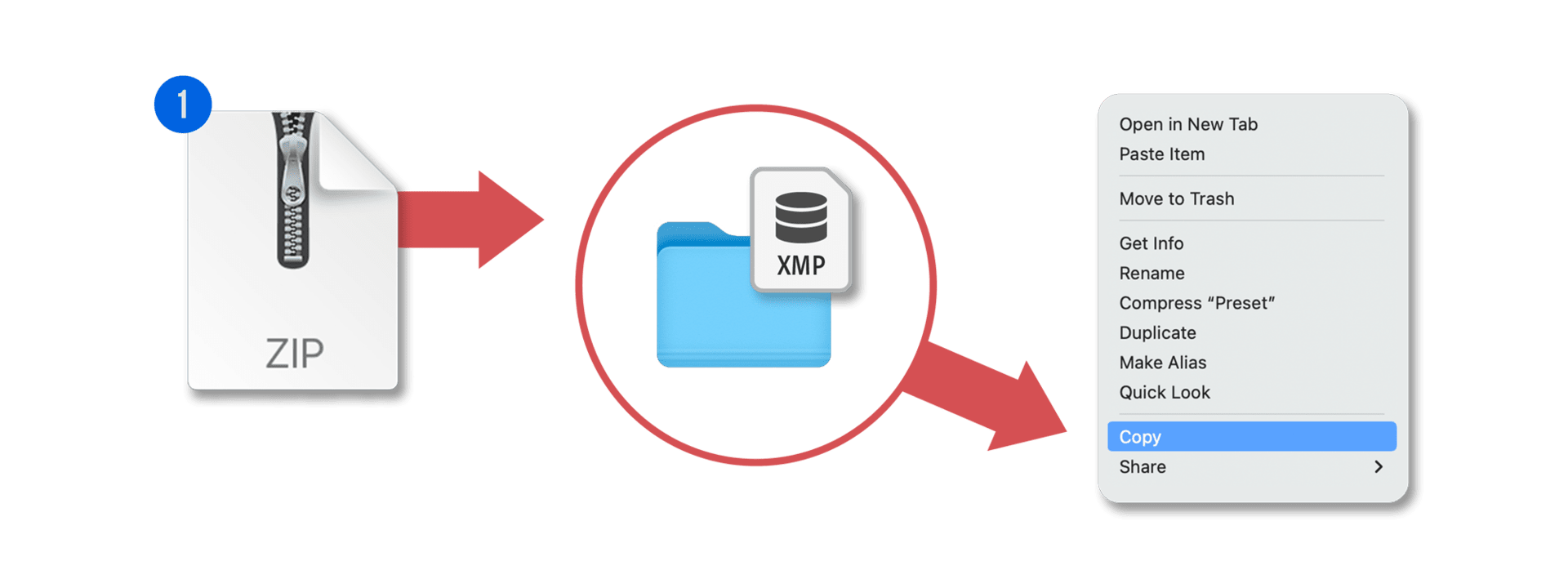
Step 2: Access Lightroom Classic Preferences
Launch Lightroom Classic. In the top left menu bar, click Lightroom Classic (Mac) or Edit (PC) and select Preferences from the dropdown menu to open the core settings window.
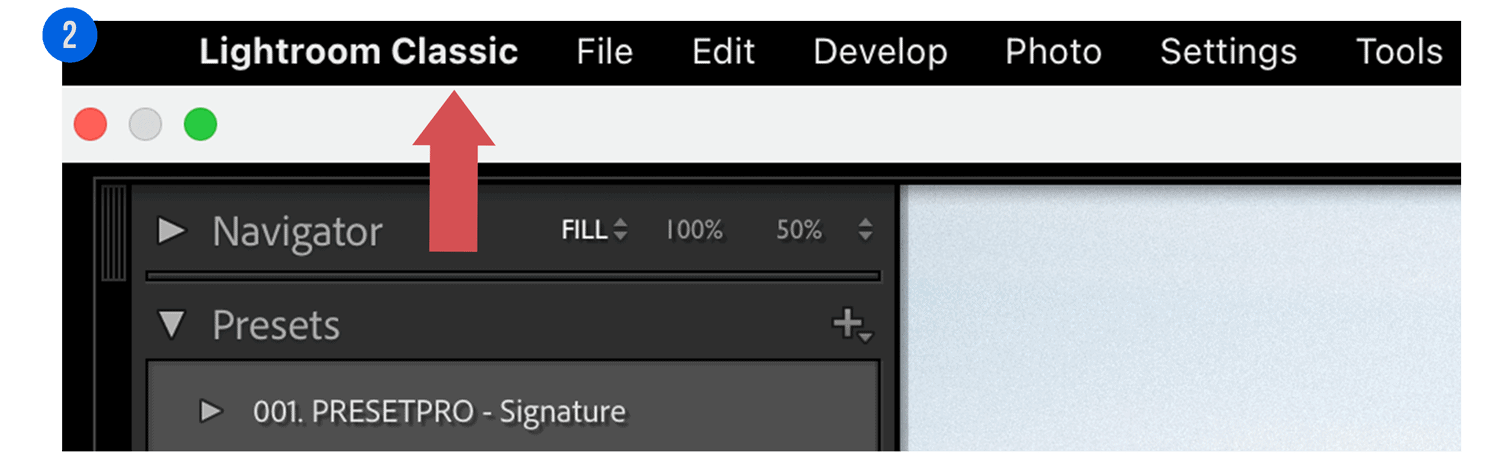
Step 3: Navigate to the Presets Tab
Inside the Preferences window, select the Presets tab. This section manages how Lightroom handles global and local adjustment files.
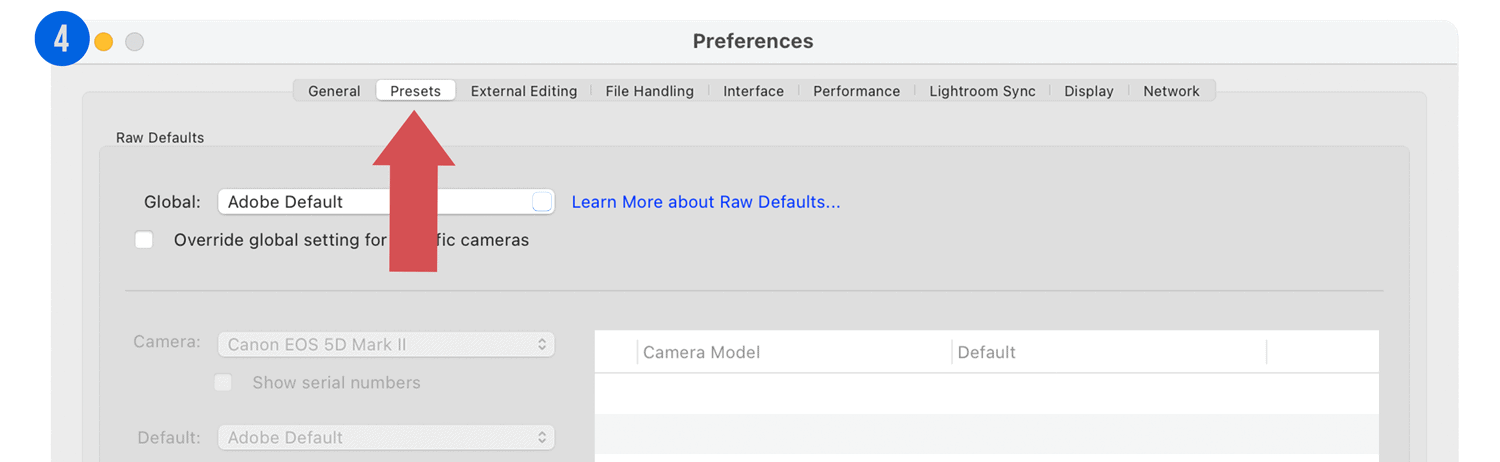
Step 4: Locate the Settings Folder
Click the button labeled “Show Lightroom Develop Presets.” This will open your computer’s file system directly to the CameraRaw directory. From here, locate and open the Settings folder.
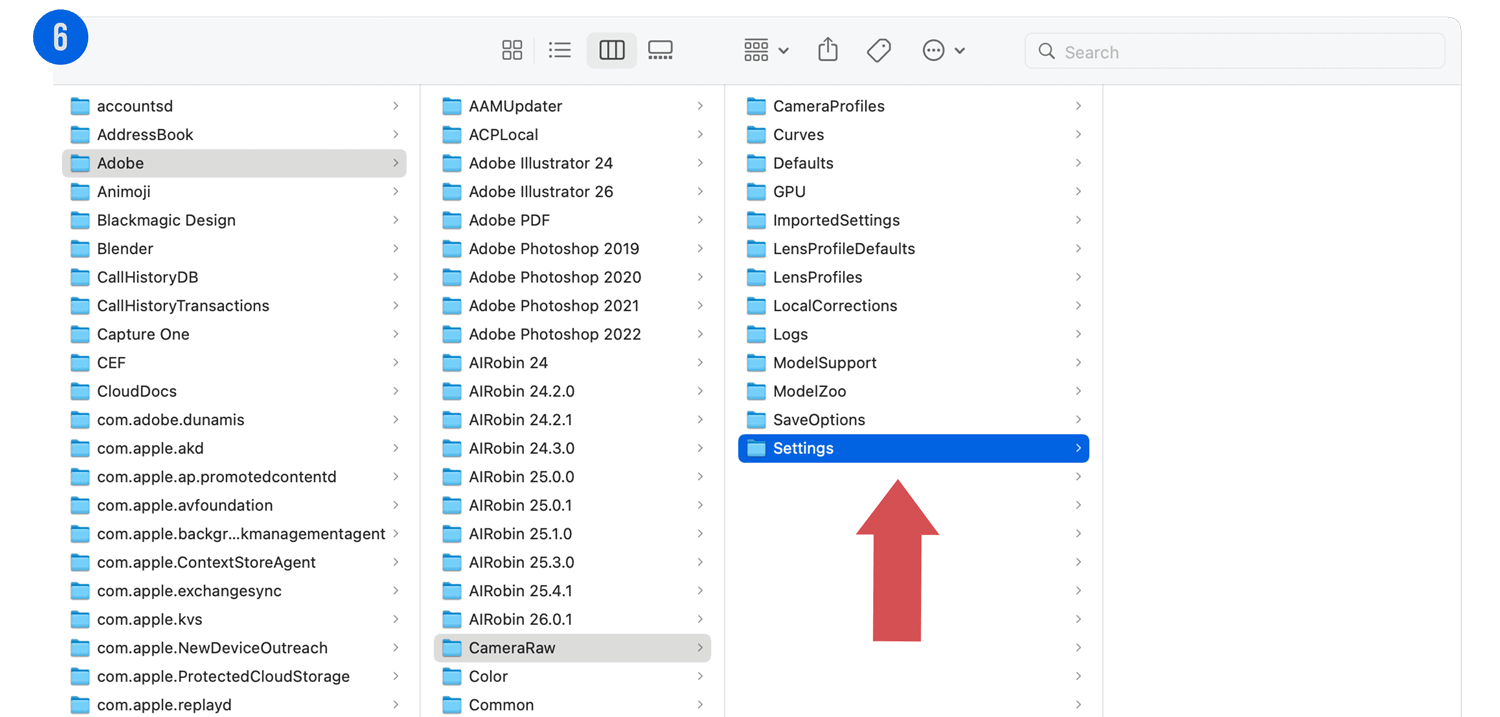
📁 Pro-Tip: Stay Organized with Folders
Instead of pasting individual .xmp files, always paste the entire folder containing your presets into the Settings directory. Lightroom Classic will automatically recognize the folder name and create a corresponding Preset Group. This keeps your Develop Module clean and professional.
Step 5: Paste and Restart
Right-click inside the Settings folder and select Paste. Once the files are moved, close all Lightroom windows and restart the application. Your new presets will now appear in the Presets Panel on the left side of the Develop Module.
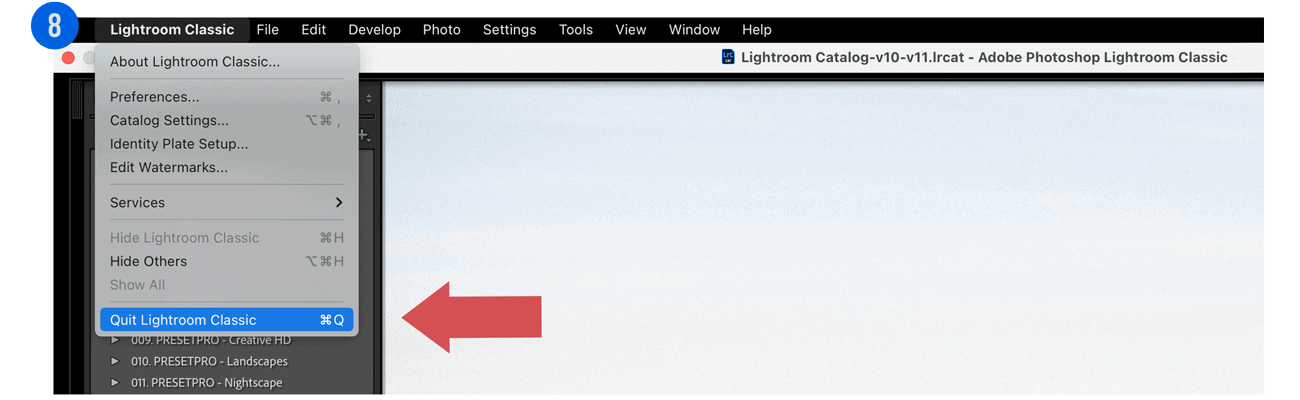
📱 Pro-Tip: Syncing to Lightroom Mobile
Want these presets on your phone? If you are a Creative Cloud subscriber, any .xmp preset installed into Lightroom Classic will automatically sync to Lightroom Mobile as long as you have “Sync with Lightroom” enabled.
⚠️ Troubleshooting: Why can’t I see my presets?
If you have followed the steps but the presets are missing, check these three things:
- Restart: Adobe Lightroom Classic only indexes the ‘Settings’ folder during startup. If the app was open, restart it.
- File Format: Ensure your files end in .XMP. Legacy .lrtemplate files may need to be imported via File > Import Develop Profiles and Presets.
- Store Presets with Catalog: In Preferences, ensure ‘Store presets with this catalog’ is unchecked unless you want them tied to one specific project.
Frequently Asked Questions (FAQ)
1. Why don’t my presets appear in Lightroom Classic after installing?
The most common reason is that the application was not restarted. You must restart Lightroom Classic so it can index the new .XMP files in the Settings folder.
2. What is the difference between .XMP and .lrtemplate?
.XMP is the modern, universal preset format used by Lightroom Classic (v7.3+), Lightroom (Cloud), and Adobe Camera Raw. .lrtemplate is a legacy format from older versions. Lightroom Classic will automatically convert legacy files upon import.
3. Can I install presets on Lightroom Mobile?
Yes. If you install .XMP presets into Lightroom Classic on your desktop and have ‘Sync with Lightroom’ enabled, they will automatically sync to your mobile app via the cloud.
4. How do I organize my presets so they don’t get messy?
Always paste the entire folder containing your presets into the Settings directory. This preserves the folder name as a ‘Preset Group’ within the interface.
Conclusion
You are now ready to start using Professional Lightroom Presets to transform your photography. By manually installing files into the Settings folder, you ensure they are correctly indexed and ready for high-volume batch processing. If you have questions about specific camera profiles or local adjustments, check out our guide on How to Install Lightroom Classic Brushes.
Do you want to take your photography skills to the next level? With The Creative Flow, you’ll have access to more than 1200 Beautiful Lightroom Presets, 1200 Lightroom Profiles, and 200 brushes that will spark your creativity and bring your photos to the next level! Designed for the photographer who wants the ultimate workflow and premium Lightroom collection. The Creative Flow is your own personal preset “toolbox” where you can swap out a variety of different looks with a few simple clicks. Whether you’re a professional or just starting out, this all-in-one collection was created for you! You won't find another product like this anywhere else online - trust us when we say it's worth every penny! Click here right now and get started with The Creative Flow today!
The Creative Flow | Presetpro.com








Lightroom Presets
Lightroom Presets

Lightroom Presets

Lightroom Presets
Lightroom Presets

Lightroom Presets

Lightroom Presets
Lightroom Presets
The film names above are the brands and trademarks of their respective holders. None of the film producers listed endorse or sponsor this film emulation collection or any other content. The film producers are not affiliated with Presetpro.com and all trademarks and copyrights are the exclusive property of their respective owners. Adobe®, Photoshop®, Adobe® Lightroom® are either registered trademarks or trademarks of Adobe Systems Incorporated in the United States and/or other countries.