
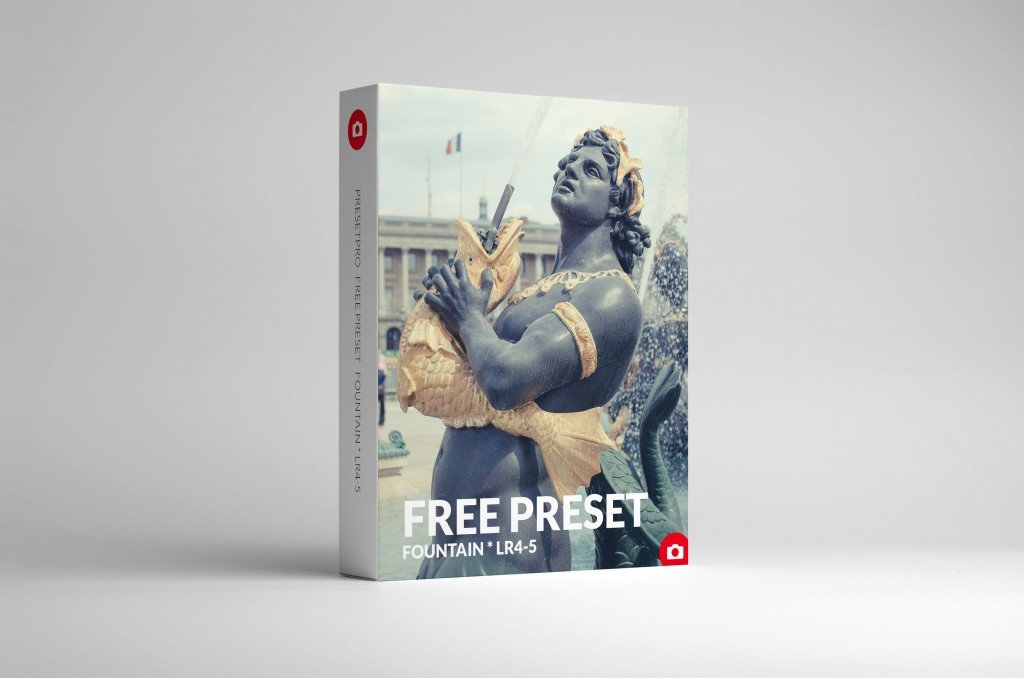
Download one free preset “Fountain” compliments of Presetpro. Main elements include a matte tone curve, vignetting and the use of split tones. Simply download and enjoy! Feel free to browse our shop and check out our latest collections.
25
Sep
Sep
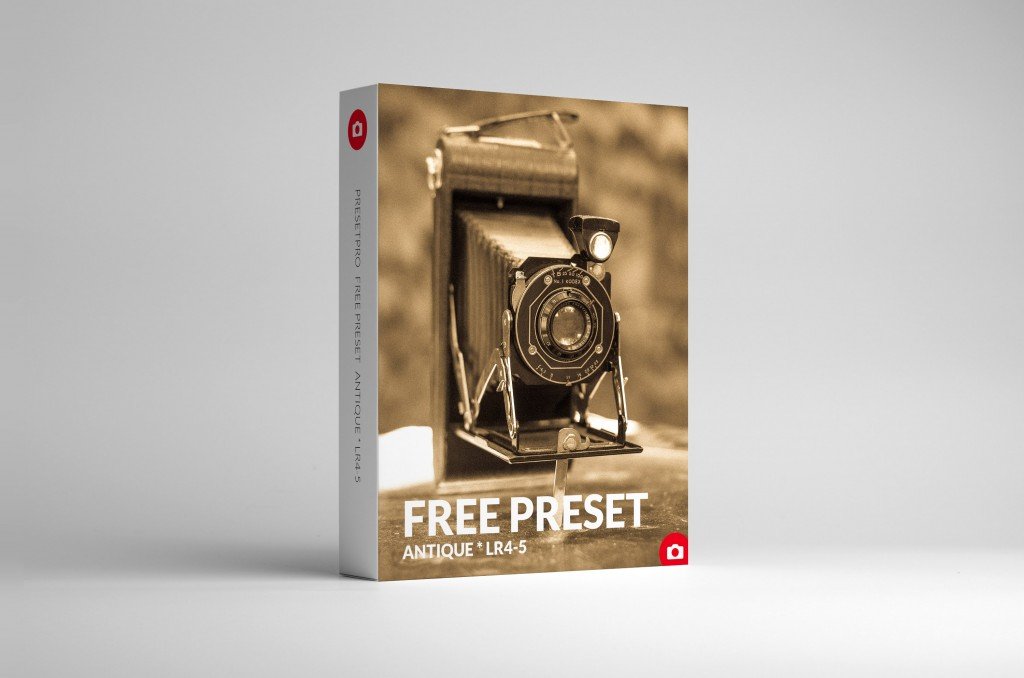
Download one free preset “Antique” compliments of Presetpro. Main elements include adjustments to grain, vignetting and the use of split tones. Simply download and enjoy! Feel free to browse our shop and check out our latest collections.
24
Sep
Sep
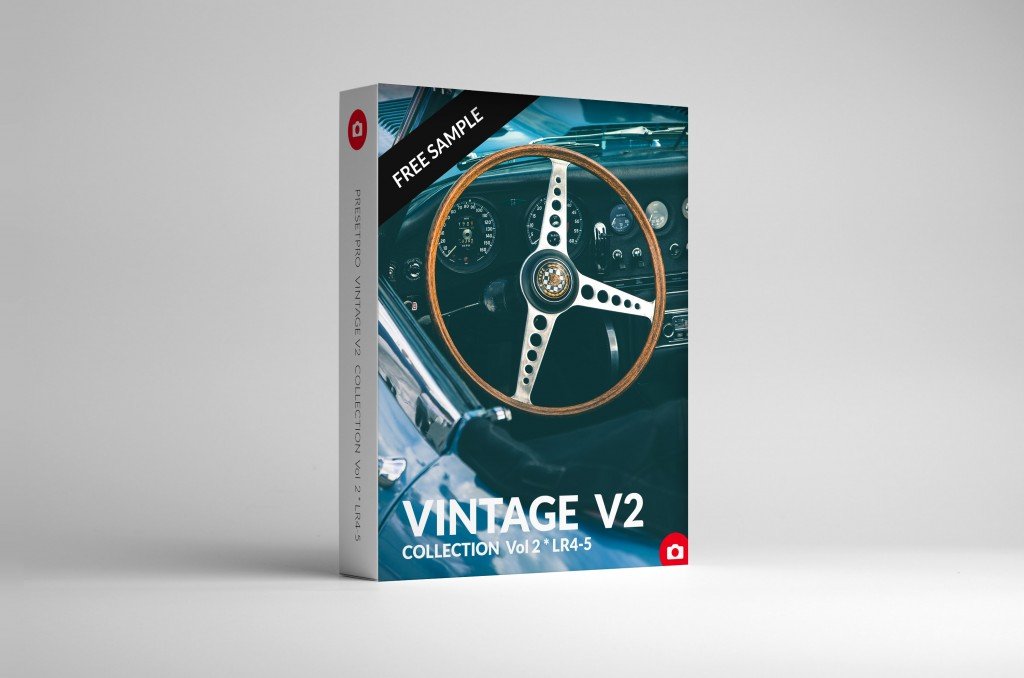
Download one free preset from one of our newest collections – Vintage V2 Collection. This free download includes: Vintage i. Shop our complete collection of presets today!
22
Sep
Sep
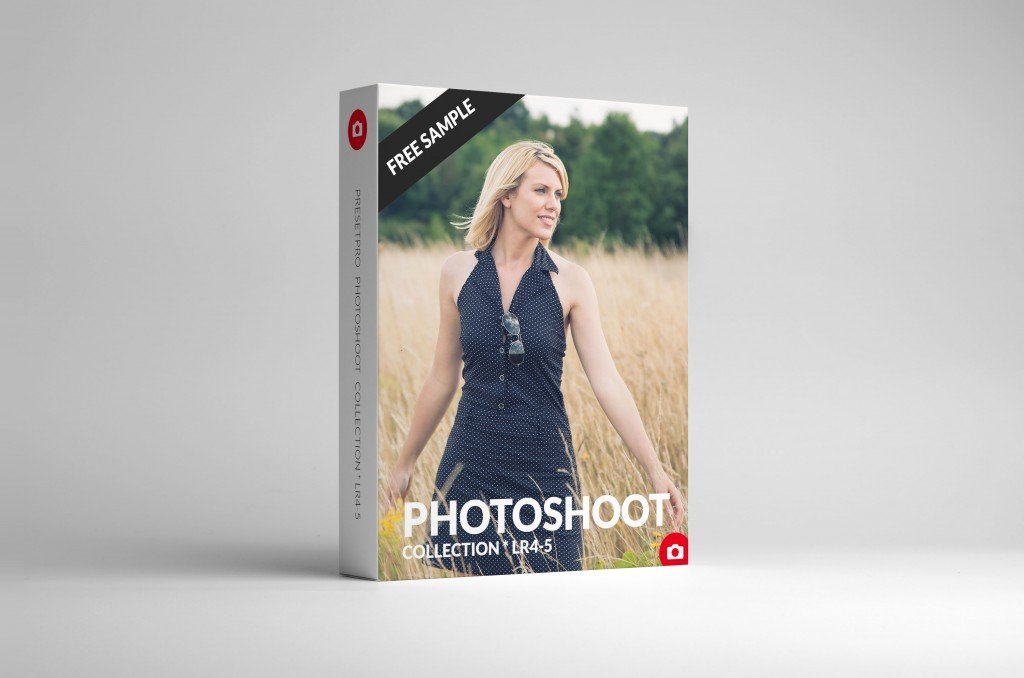
Download one free preset from one of our newest collections – Photoshoot Collection. This free download includes: Curve Bright. Shop our complete collection of presets today!
17
Sep
Sep
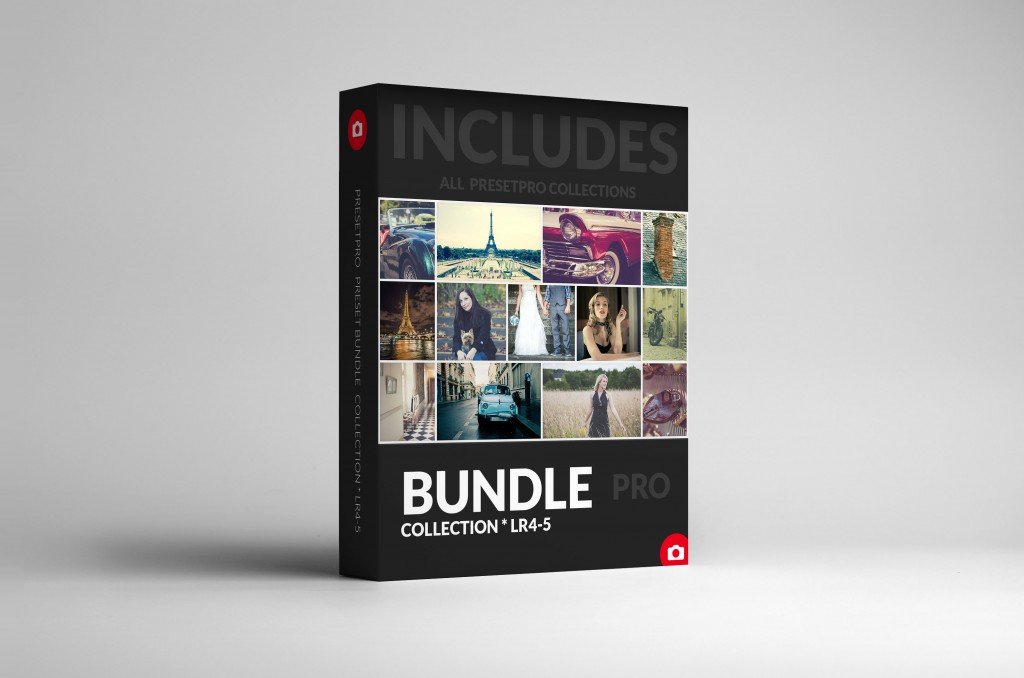
Digital Download Includes 16 Collections: Save tons of money when you purchase all the collections in one convenient package. The Pro Collection has over 200 beautiful presets created for Lightroom 4 and 5.
12
Sep
Sep
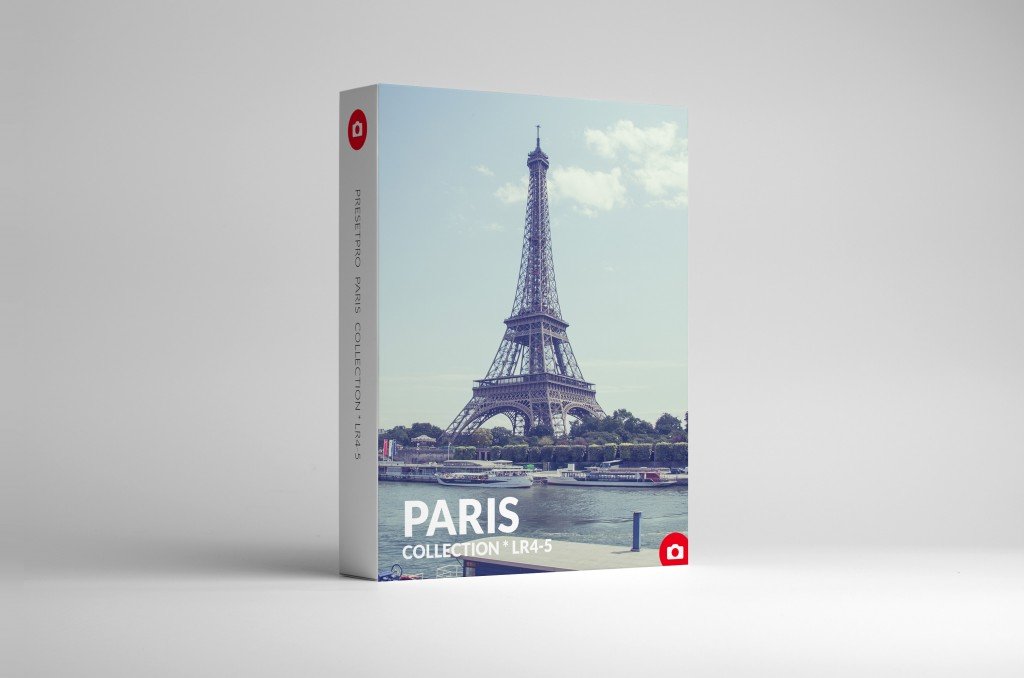
Paris Collection Includes 26 Presets. The Paris Collection has an amazing mix of tone curves and pastel colours that change your photos with one simple click. The Paris Collection has beauty behind every preset. Created for Lightroom 4 and 5.
06
Sep
Sep
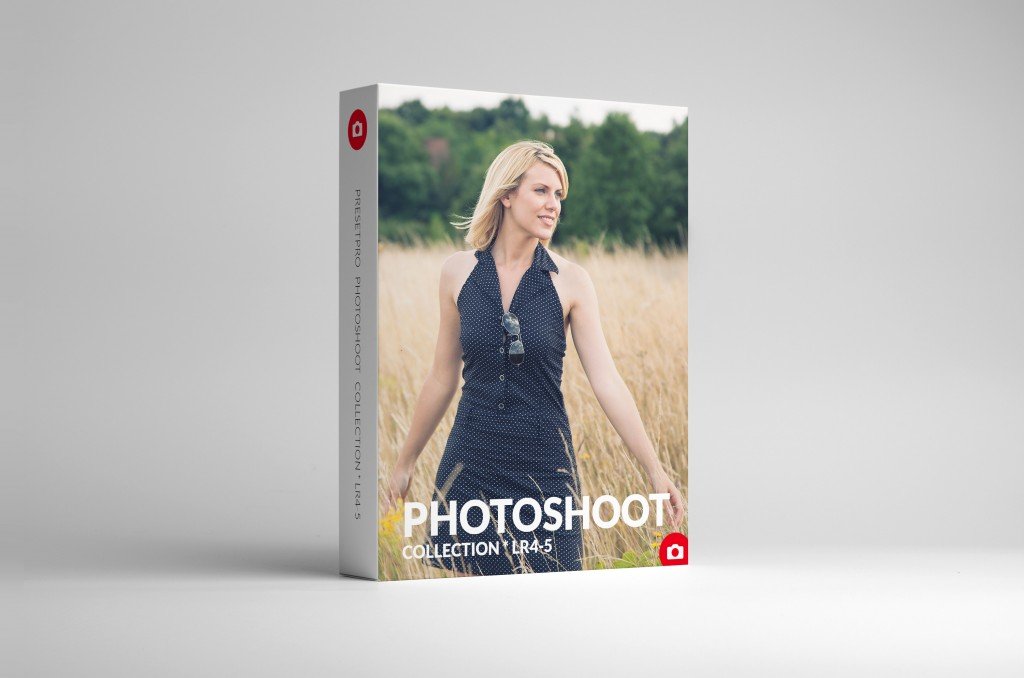
Digital Download Includes 22 Presets. The Photoshoot Collection is the must have collection from Presetpro. Experience the amazing mix of tone curves and colours as your photos instantly change with one simple click. The Photoshoot Collection has beauty behind every preset. Created for Lightroom 4 and 5.
02
Sep
Sep
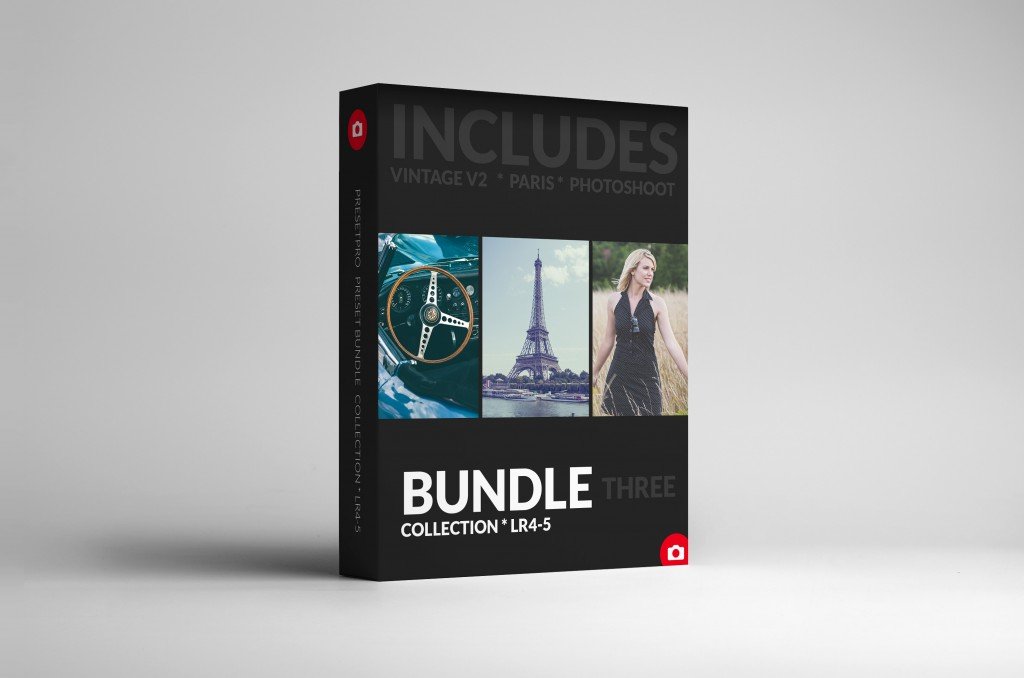
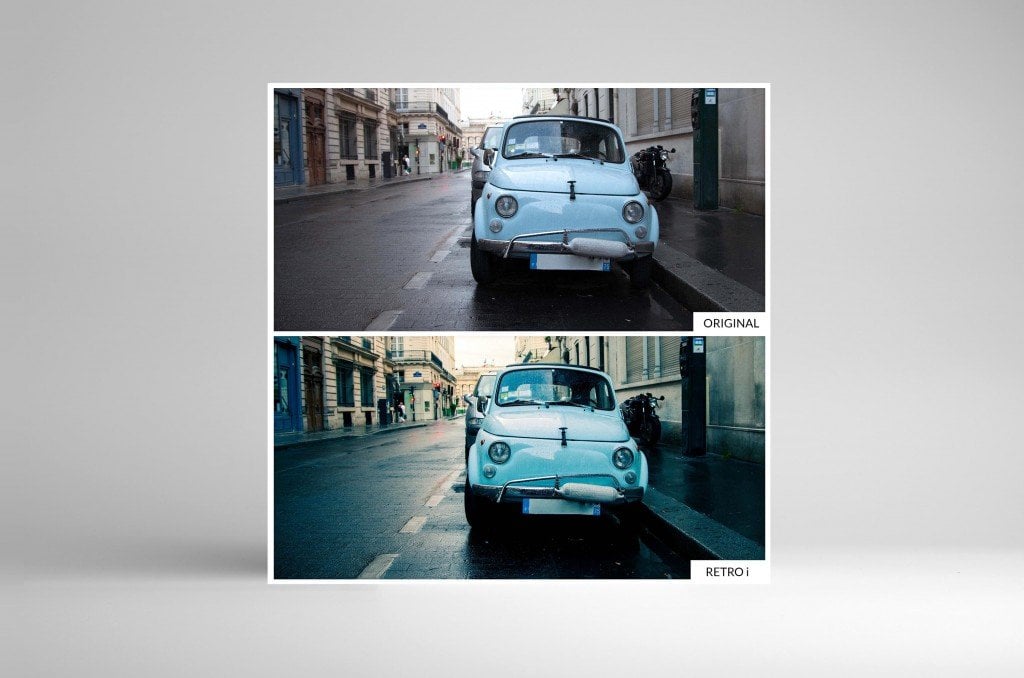
1. Vintage V2 Collection Includes 40 Presets: Beautiful Vintage inspired Presets for Lightroom 4 and 5. Customize your photos with our premium vintage presets. Enjoy adding warm and rich colours to your photos that take you back in time. Presets Include: Vintage i, Vintage ii, Vintage iii, Faded i, Faded ii, Faded iii, Retro i, […]
20
Aug
Aug
Beautiful Vintage inspired Presets for Lightroom 4 and 5. Customize your own look with our premium vintage presets. Enjoy adding warm and rich colours to your photos that take you back in time.