


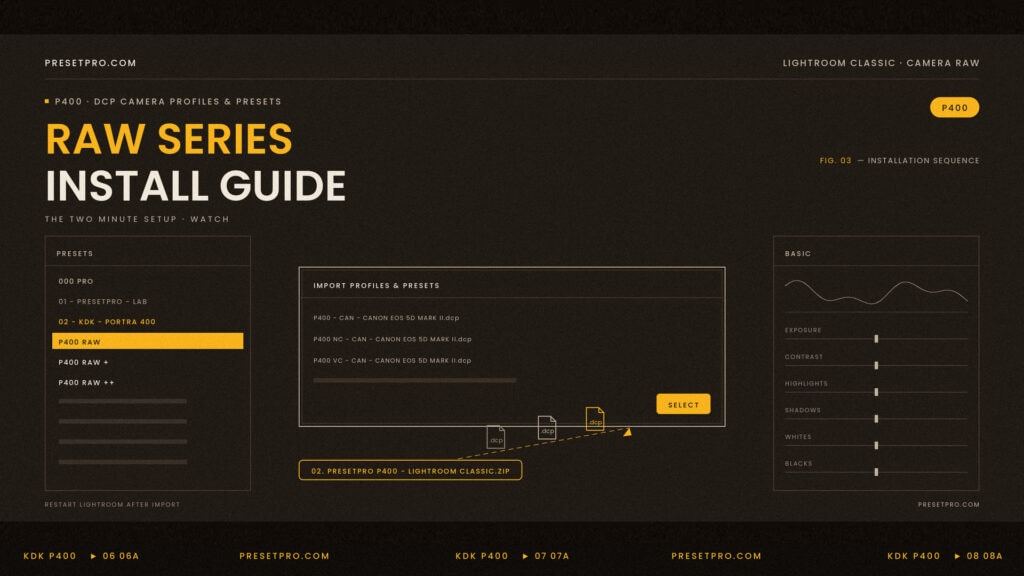
The RAW Series installs like any other Lightroom package, with one important difference: it includes camera profiles, not just presets. Those profiles are DCP files, and DCP files are a Lightroom Classic feature. This guide covers the one click install, the manual method, the Cloud Edition, and what to do if something does not show up.
The whole thing takes about two minutes.

What is in your download
Unzip the file you received after purchase. Inside are four numbered items:
- 01. INSTALL GUIDE.md: the short version of this article.
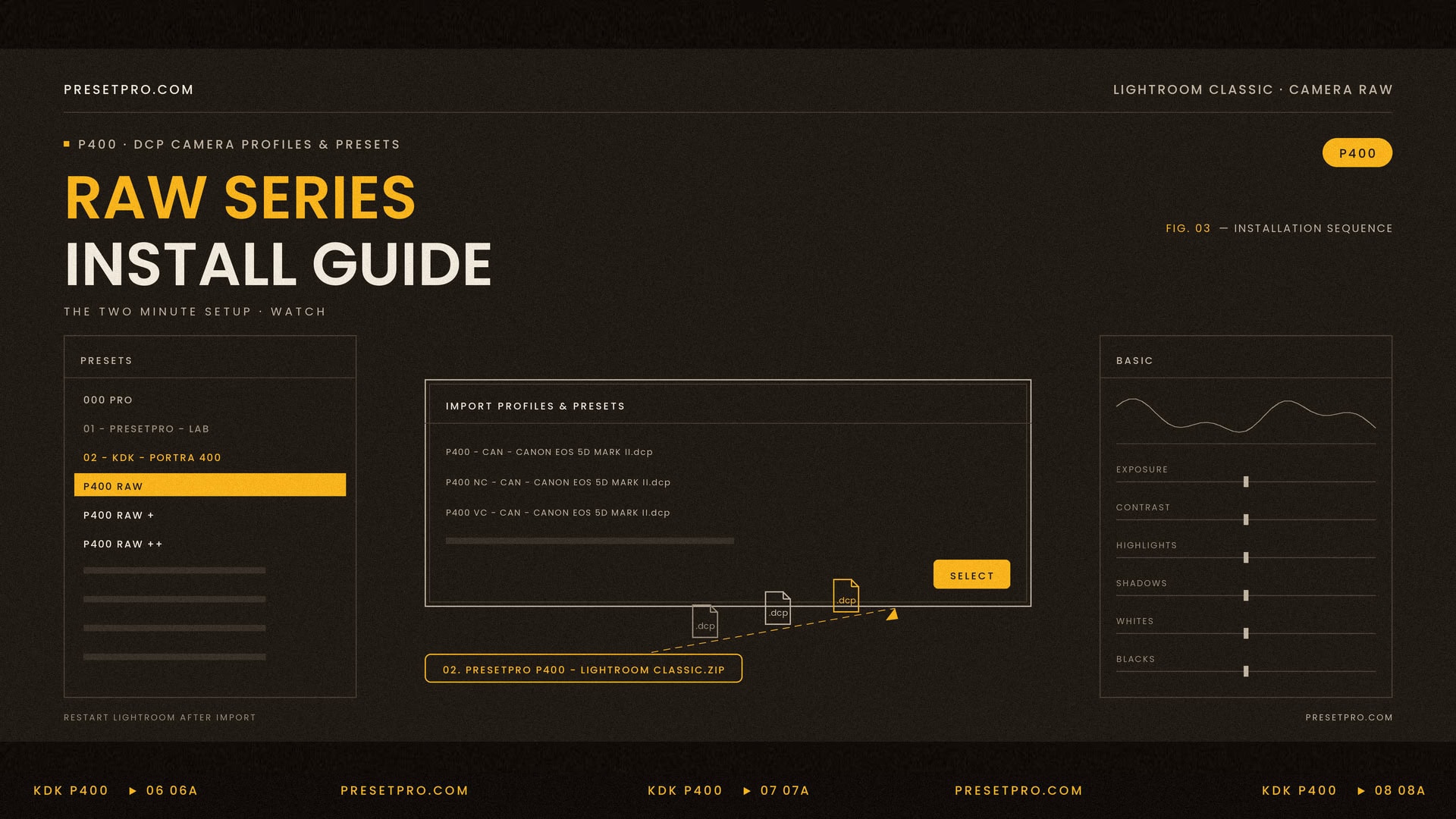
- 02. Presetpro P400 – Lightroom Classic.zip: the complete collection. Leave this one zipped. Lightroom wants it exactly as it is.
- 03. Presetpro P400 – Lightroom Cloud.zip: the Cloud Edition for the cloud version of Lightroom. Also stays zipped.
- 04. Presetpro P400 – Manual Install: an open folder tree, for anyone who prefers to place the files by hand.
Most people only need number 2.
Why this is built for Lightroom Classic
The RAW Series is a preset and profile system. The presets set the sliders. The profiles do the color, and they come in two kinds.
Camera profiles (DCP)
A DCP is a camera profile: a color rendering built for one specific camera model. The RAW Series P400 includes 2,277 of them, covering 759 camera models across ten brands. When you click a “P400 raw” look, Lightroom Classic renders your file through the profile built for the exact camera that took the photo. That is why the same look holds together across different bodies instead of drifting from camera to camera.
DCP files only work on RAW files, and only in software that supports third-party camera profiles: Lightroom Classic and Adobe Camera Raw. The cloud version of Lightroom does not support third-party camera profiles at all. We tested this directly: the cloud app accepts the files at import and then never shows them in the Profile browser.
Look profiles
The other 18 looks are universal. They work on every photo, RAW or JPEG, in both versions of Lightroom, and they carry an Amount slider from 0 to 200 so you can dial the strength.
The short version. Lightroom Classic gets everything. The cloud version gets everything except the six RAW looks, which is exactly what the Cloud Edition contains.
Install in Lightroom Classic
This is the method almost everyone should use.
- Open Lightroom Classic.
- Go to the Develop module.
- Choose File > Import Develop Profiles & Presets.
- Select 02. Presetpro P400 – Lightroom Classic.zip. Do not unzip it first.
- Click Import.
- Restart Lightroom Classic. Profiles are loaded at startup, so this step is not optional.
That is the entire install. Everything lands where it belongs.
Manual install (Mac and Windows)
If you would rather place the files yourself, use the 04. Presetpro P400 – Manual Install folder. Copy its contents into your Camera Raw folder:
- Mac:
~/Library/Application Support/Adobe/CameraRaw/
In Finder press Cmd+Shift+G and paste that path. - Windows:
C:UsersYOURNAMEAppDataRoamingAdobeCameraRaw
Paste it into the File Explorer address bar. AppData is hidden by default.
The CameraProfiles contents go into CameraProfiles, and the Settings contents go into Settings. Restart Lightroom Classic when you are done.
Install in Lightroom (the cloud version)
The Cloud Edition contains the 18 universal looks and the complete 64-tool LAB, tested in the cloud app.
- Open Lightroom (the cloud version) on your desktop.
- Choose File > Import Profiles & Presets.
- Select 03. Presetpro P400 – Lightroom Cloud.zip and import.
The six RAW looks are not included in this package, because the cloud app cannot display third-party camera profiles. For the full designed rendering through your camera’s own profile, use Lightroom Classic.
Finding your presets after install
Open a RAW photo first, then look in the Presets panel. Everything lives in the 000 Pro section, in two groups:
- 02 – KDK – Portra 400: the 24 looks. The “P400 raw” row is the designed rendering through your camera profile. The P400, nc, and vc rows work on any photo and have the Amount slider.
- 01 – PRESETPRO – LAB: the 64-tool toolkit. Film fades, grain by ISO, vignettes, sharpening, and finishing tools.
One habit worth building: apply the preset first, then change the profile if you want a different rendering. A preset always resets the profile to its own bundled choice, so preset first, profile second.
Updating to a new version
Lightroom does not refresh items it has already imported, so an update needs a clean slate first. With Lightroom closed, delete these two folders inside your Camera Raw folder (paths above), then import the new zip:
ImportedSettings/Settings/PresetproCameraProfiles/Imported/CameraProfiles/Presetpro DCP
Your photos and edits are never affected. Profiles already applied to images reconnect automatically by name after the update.
Troubleshooting
The “P400 raw” looks are missing. They appear only when a RAW file from a supported camera is selected, in Lightroom Classic. That is normal Lightroom behavior, not a broken install. On a JPEG, or in the cloud app, use the P400, nc, and vc rows instead.
I see duplicates of everything. Lightroom keeps copies of previously imported packages. With Lightroom closed, delete the two folders listed under “Updating to a new version”, then import once more.
Nothing appeared at all. Confirm you selected the zip file itself rather than a folder you unzipped, and that you restarted Lightroom after importing.
My camera is not in the list. The universal looks still work on every photo. Profile updates are free for the stock you own, so newer bodies get added over time.
Where to go next
New to film emulation? Read the complete film stock guide for how film looks are built and which stock suits which subject. You can also browse the whole RAW Series collection. P400 inspired by Portra 400
Presets and profiles are inspired by the celebrated color negative films of the past. Kodak and Portra are trademarks of their respective holders; Presetpro is not affiliated with or endorsed by Kodak. Adobe, Adobe Lightroom and Adobe Camera Raw are either registered trademarks or trademarks of Adobe Systems Incorporated in the United States and other countries.